


유튜브 자막은 동영상 플레이어의 자막(CC) 버튼으로 켜고 끕니다.
껐는데도 자막이 계속 뜬다면 앱 설정의 '자막 표시'와 '음소거 시 표시'부터 확인합니다. 앞의 것은 지원되면 항상 자막을 띄우는 기본값이고, 뒤의 것은 이름 그대로 음소거했을 때 자막을 보여 주는 기능입니다.
네이버 지식iN에서 'AI 자막'으로 검색되는 질문이 10월 5일 기준 6,468건, '유튜브 자동 자막'은 3,530건입니다.
껐는데도 자막이 계속 뜬다면
컴퓨터에서는 플레이어 오른쪽 아래의 자막 버튼을 누르면 켜지고, 다시 누르면 꺼집니다. 앱에서는 플레이어를 한 번 탭해 옵션을 띄운 뒤 자막 버튼을 누릅니다.
자막 버튼이 아예 안 보이면 그 동영상에는 쓸 수 있는 자막이 없다는 뜻이라고 유튜브는 적었습니다.
기본값 — '자막 표시'
앱에서 프로필 사진 → 설정 → 자막으로 들어가 '자막 표시'를 켜면, 지원되는 동영상에서 항상 자막이 나옵니다. 영상마다 끄는데 계속 다시 켜진다면 이 기본값부터 봅니다.
휴대기기의 '음소거 시 표시'
휴대기기와 태블릿에는 '음소거 시 표시' 기능이 따로 있습니다. 플레이어를 한 번 탭하고 설정 → 자막에서 '음소거 시 표시' 옆 버튼으로 켜고 끕니다.
원하는 언어가 없으면
플레이어의 더보기 → 자막에서 언어를 고르고, 목록에 원하는 언어가 없으면 '자동 번역'을 눌러 언어를 고릅니다.
글꼴·색상·크기 같은 모양은 컴퓨터에서 설정 → 자막 → 옵션에서 바꿉니다. 다시 바꾸거나 '재설정'을 누르기 전까지 그 모양이 기본으로 유지됩니다.
자동 자막은 어떻게 만들어질까?
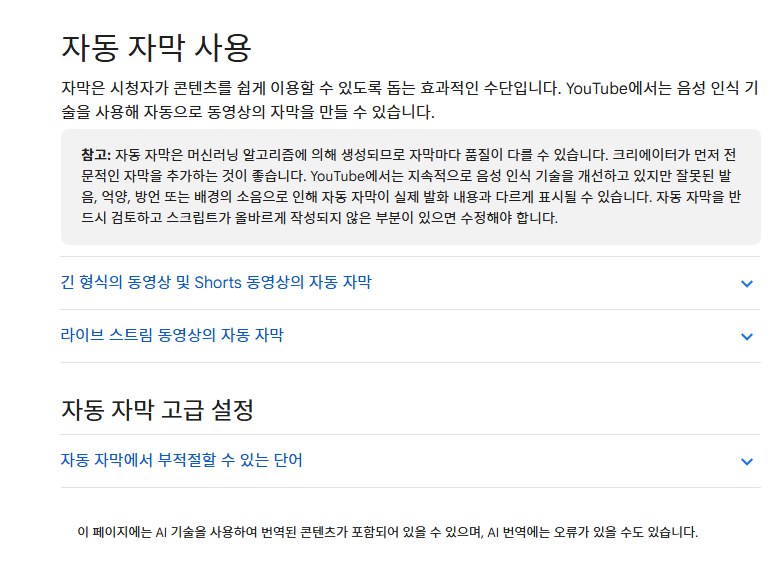
유튜브는 음성 인식 기술로 동영상 자막을 자동으로 만듭니다. 한국어를 비롯해 여러 언어를 지원합니다.
다만 머신러닝으로 만드는 자막이라 품질이 제각각입니다. 잘못된 발음, 억양, 방언, 배경 소음 때문에 실제 말과 다르게 나올 수 있어, 크리에이터에게 반드시 검토하고 고치라고 유튜브는 권합니다.
오디오 트랙이 여러 개인 동영상은 기본 언어로 자동 자막이 붙습니다. 업로드 직후에는 아직 준비되지 않았을 수 있고, 처리 시간은 오디오가 얼마나 복잡한지에 따라 다릅니다.
자동 자막이 끝내 안 생긴다면 유튜브가 든 이유는 여섯 가지입니다.
- 복잡한 오디오를 아직 처리하는 중
- 동영상 언어가 자동 자막을 지원하지 않음
- 동영상이 너무 김
- 음질이 나쁘거나 음성을 인식할 수 없음
- 시작 부분에 긴 무음 구간이 있음
- 여러 사람 목소리나 여러 언어가 겹침
라이브 방송은 조건이 더 까다롭습니다. 실시간 자동 자막은 영어로만 제공되고, 구독자 1,000명이 넘는 채널부터 순차 적용되며, 지연 시간이 기본으로 설정된 스트리밍에서만 됩니다.
틀린 자동 자막 고치기
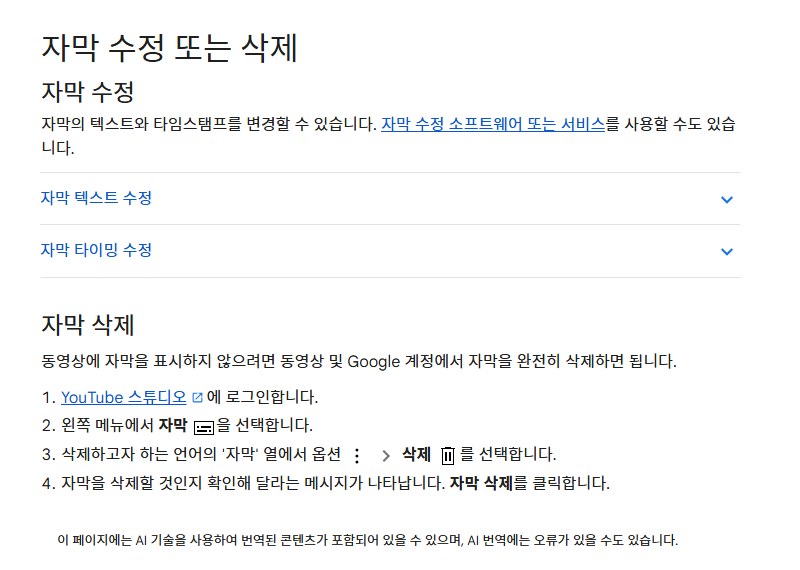
고치는 곳은 YouTube 스튜디오입니다. 왼쪽 메뉴에서 자막을 고르고 동영상을 누른 뒤, 고칠 언어의 '자막' 열에서 수정을 누릅니다.
자동 자막은 '복사 및 수정'을 거쳐야 합니다. 자동 생성된 자막을 고치면 수정 내용을 담은 새 자막 트랙이 생깁니다.
타이밍은 자막 편집기에서 각 줄 양쪽의 타임스탬프를 고치거나, 자막 파일을 내려받아 메모장 같은 편집기로 고친 뒤 다시 올립니다.
자막을 아예 없애려면 스튜디오의 자막 메뉴에서 그 언어 옆 옵션 → 삭제를 고릅니다.
자동 자막의 거친 말은 기본적으로 가려집니다. '부적절할 수 있는 단어는 표시 안 함' 설정이 그런 단어를 '[ __ ]'로 바꾸는데, 수익 창출 상태에는 영향이 없다고 유튜브는 밝혔습니다.
결국 시청자는 앱 설정 두 곳, 크리에이터는 스튜디오의 자막 메뉴를 보면 됩니다.
YouTube captions are turned on and off with the captions (CC) button in the video player.
If captions keep appearing after you turn them off, check the app's 'Captions' setting and 'show when muted' first. The first is a default that always shows captions when available; the second, as its name says, shows captions when the video is muted.
On Naver's Q&A service, a search for 'AI captions' returns 6,468 questions as of October 5, and 'YouTube automatic captions' 3,530.
If captions keep showing after you turn them off
On a computer, click the captions button at the bottom right of the player to turn them on, and click again to turn them off. In the app, tap the player once to show the controls, then tap captions.
If the captions button doesn't appear at all, the video has no captions available, YouTube says.
The default - 'Captions'
In the app, go to your profile picture > Settings > Captions and turn on 'Show captions' to always see captions on supported videos. If captions keep coming back on every video, check this default first.
'Show when muted' on mobile
Phones and tablets have a separate 'show when muted' feature. Tap the player once, then Settings > Captions, and use the switch next to it.
If your language isn't listed
Choose a language under More > Captions in the player; if it isn't listed, tap 'Auto-translate' and pick one.
Font, color and size can be changed on a computer under Settings > Captions > Options; that look stays the default until you change it again or click 'Reset'.
How are automatic captions made?
YouTube generates captions automatically with speech recognition, in many languages including Korean.
Because machine learning produces them, quality varies: mispronunciation, accents, dialects or background noise can make them differ from what was said, so YouTube asks creators to always review and fix them.
Videos with several audio tracks get automatic captions in the default language. They may not be ready right after upload, and processing time depends on how complex the audio is.
If automatic captions never appear, YouTube lists six reasons.
- The complex audio is still being processed
- The video's language isn't supported for automatic captions
- The video is too long
- Poor sound quality or speech YouTube can't recognize
- A long silence at the start
- Overlapping speakers or multiple languages at once
Live streams are stricter: live automatic captions are English only, are rolling out to channels with more than 1,000 subscribers, and work only with normal-latency streaming.
Fixing wrong automatic captions
Edits happen in YouTube Studio: choose Subtitles in the left menu, click the video, then click Edit in the subtitles column for the language.
Automatic captions go through 'Duplicate and edit'; editing auto-generated captions creates a new caption track with your changes.
Fix timing by adjusting the timestamps on either side of each line in the editor, or download the caption file, edit it in a text editor such as Notepad and upload it again.
To remove captions entirely, open Subtitles in Studio and choose Options > Delete next to that language.
Rough language is hidden by default: the 'hide potentially inappropriate words' setting replaces such words with '[ __ ]', and YouTube says it does not affect monetization.
In the end, viewers need two app settings, and creators need Studio's Subtitles menu.
Sources · YouTube Help · YouTube Help · YouTube Help · YouTube Help